Chapter 23: Publishing to Android
From a debug APK to a signed bundle Play will take
The gap between "it runs on my phone" and "it is on Google Play" is wider than it looks, and it is made almost entirely of things that are boring individually and unforgiving collectively. A version code you forgot to increment. A target API that was fine last year. A keystore on a laptop that was replaced.
That last one deserves to be first, and this chapter's checklist puts it there for a reason the source states plainly:
The ordering is deliberate: signing comes before anything cosmetic, because a keystore lost after publication cannot be replaced and the app can never be updated again. Everything else on this list is recoverable.
That is not an exaggeration. Android identifies an application by its package name and the certificate that signed it. Lose the private key and there is no appeal, no support ticket and no recovery — you publish a new listing under a new package name and start from zero installs.
So this chapter is a checklist, an explanation of why each item is on it, and the publish command that produces the artefact. It is deliberately the least clever chapter in the book.
What you will learn in this chapter
- Why the upload key is the one irreversible decision in Android publishing, and how Play App Signing changes the picture.
- The difference between an APK and an AAB, and why Play wants the latter.
- What
ApplicationVersionandApplicationDisplayVersionmean and which one Play checks. - Why the target API level is a moving deadline rather than a setting.
- What a Release build changes, and why
EmbedAssembliesIntoApkmatters even so. - Which items block an upload and which merely block a good listing.
- The
dotnet publishinvocation that produces a signed bundle. - The caveats: 16 KB pages, per-ABI builds, ProGuard, and the data safety form.
The code for this chapter
The demonstration is at github.com/nodoid/MonoGameBook/src/Chapter23. It is a working checklist: tick items off and watch the progress bar refuse to fill while any blocking item is outstanding.
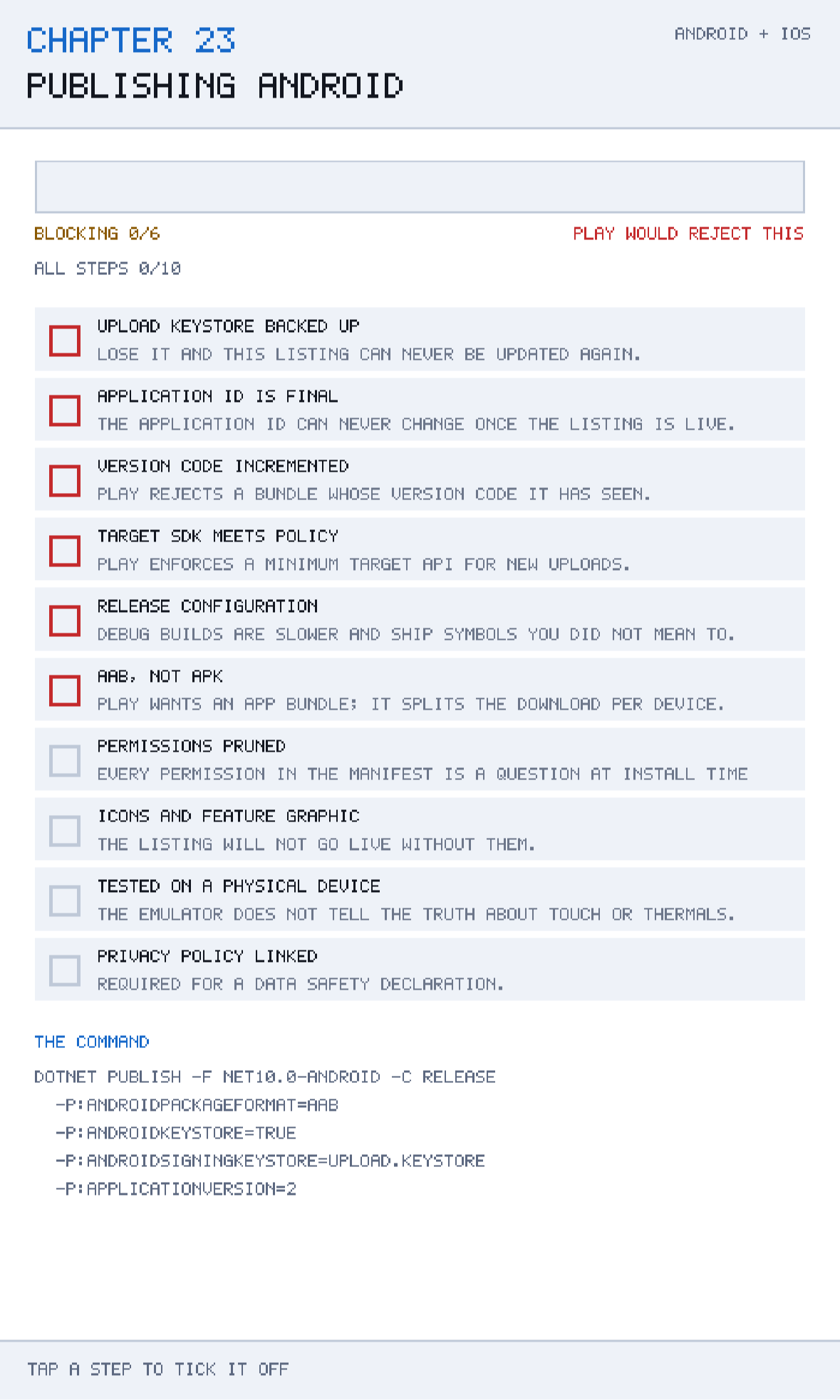
The checklist, and why each item is on it
public sealed record ReleaseStep(string Title, string Detail, bool Blocking);The Blocking flag divides the list into two genuinely different kinds of problem. A blocking item means Play refuses the upload — you find out in ninety seconds. A non-blocking item means the upload succeeds and something else is wrong, which you find out from a review, a rejection, or a one-star rating.
Upload keystore backed up — blocking
Lose it and this listing can never be updated again.
Generate the keystore once, and treat the file and its passwords as the most important artefact your project has. Not on one laptop. Not only in the repository — a keystore committed to a public repository is a keystore anyone can impersonate you with. A password manager plus an encrypted backup in two physical places is not paranoid here.
keytool -genkeypair -v \
  -keystore upload.keystore -alias upload \
  -keyalg RSA -keysize 2048 -validity 10000
-validity 10000 is about 27 years, which is the usual recommendation because a certificate that expires before your app does is its own version of the same disaster.
Play App Signing softens this considerably and you should enrol. Google holds the app signing key and re-signs your bundles; you hold an upload key that only proves the upload is from you. If you lose the upload key, Google can reset it — losing the app signing key would still be terminal, but that one is theirs to keep. Enrolling is a checkbox when you create the listing, and there is no good reason not to.
Application id is final — blocking
com.monogamebook.chapter23 is the identity of the listing. It cannot be changed after publication, it cannot be reused after a listing is removed, and it is visible to users in URLs. Choose it as carefully as a domain name — reverse-DNS of a domain you actually control, all lower case, no hyphens.
Version code incremented — blocking
Two different version numbers exist and they are frequently confused:
<ApplicationVersion>2</ApplicationVersion>
<ApplicationDisplayVersion>1.0.1</ApplicationDisplayVersion>
ApplicationVersion is the version code — an integer that must strictly increase with every upload. Play rejects a bundle whose version code it has already seen, and this is the single most common upload failure. ApplicationDisplayVersion is the version name — the string users see, which can be anything.
Automate the version code. Deriving it from your CI build number, or from a date such as 20260908, removes the failure entirely.
Target SDK meets policy — blocking
Google Play enforces a minimum targetSdkVersion for new uploads, and it rises every year — typically to the API level released about a year earlier. Chapter 1's manifest has android:targetSdkVersion="36", and by the time you read this the floor may well be higher.
This is a deadline rather than a setting, and it is worth understanding what it costs: raising the target opts you into that version's behaviour changes, which for a game usually means storage and permission changes. Check the behaviour-change list for each level you skip.
Note that minSdkVersion — 23 in this book, Android 6.0 — is a different decision entirely, about how many devices you are willing to support. Lower is more reach and more testing.
Release configuration — blocking
Debug builds are slower and ship symbols you did not mean to.
A Debug build disables optimisations, includes debug symbols, and marks the package debuggable, which Play refuses outright. Beyond that it is simply slower — Chapter 22 made the point that a Debug build's frame times are not your game's frame times.
AAB, not APK — blocking
Play requires an Android App Bundle for new applications. An AAB is not an installable package; it is a publishing format containing all your code and resources for all architectures and densities, from which Play generates a minimal APK per device.
The practical benefit is download size. A game with both 32-bit and 64-bit ARM builds ships one of them per device rather than both, and for a .NET game — where the runtime is a large part of the payload — that is a substantial saving.
The practical cost is that you cannot install an AAB directly. For local testing you either build an APK as well, or use Google's bundletool to generate one. Keep an APK build in your scripts for exactly this.
Permissions pruned — not blocking
Every permission in the manifest is a question at install time.
A game like the ones in this book needs no permissions at all, and Chapter 1's manifest declares none. Be careful: libraries you add can merge permissions into your manifest without you noticing, and INTERNET or ACCESS_NETWORK_STATE arriving from an analytics SDK is common.
Check the merged manifest, not the one you wrote:
dotnet build -c Release Android/Chapter.Android.csproj
cat Android/obj/Release/net10.0-android/AndroidManifest.xml
Icons, feature graphic, privacy policy, physical device — not blocking
These do not stop an upload; they stop it being a good listing, or in the case of the privacy policy they stop the data safety declaration being completable. And the physical device item is Chapter 2's argument arriving one last time: *the emulator does not tell the truth about touch or thermals.*
The publish command
dotnet publish -f net10.0-android -c Release
  -p:AndroidPackageFormat=aab
  -p:AndroidKeyStore=true
  -p:AndroidSigningKeyStore=upload.keystore
  -p:ApplicationVersion=2
In practice you also need the alias and passwords, which is where secret handling matters:
dotnet publish Android/Chapter.Android.csproj \
  -f net10.0-android -c Release \
  -p:AndroidPackageFormat=aab \
  -p:AndroidKeyStore=true \
  -p:AndroidSigningKeyStore=$KEYSTORE_PATH \
  -p:AndroidSigningKeyAlias=upload \
  -p:AndroidSigningKeyPass=env:KEY_PASSWORD \
  -p:AndroidSigningStorePass=env:STORE_PASSWORD \
  -p:ApplicationVersion=$BUILD_NUMBER
env: prefixes tell the Android tooling to read the password from an environment variable rather than the command line, which keeps it out of your shell history and out of CI logs. Use it.
The output lands in bin/Release/net10.0-android/publish/ as a .aab, and that file is what you upload.
Producing an APK too
dotnet publish Android/Chapter.Android.csproj \
  -f net10.0-android -c Release \
  -p:AndroidPackageFormat=apk \
  ...same signing arguments...
Worth doing in the same script. The AAB goes to Play; the APK goes to your testers, who can install it directly.
Two settings that are easy to get wrong
EmbedAssembliesIntoApk
<EmbedAssembliesIntoApk>true</EmbedAssembliesIntoApk>Chapter 1 introduced this and it is worth repeating in a publishing chapter. In Debug, .NET for Android defaults to fast deployment: the package ships without your managed assemblies and the tooling pushes them separately over ADB. That makes -t:Run faster and makes the resulting APK unusable — sideload it and it dies at startup.
Release builds embed assemblies regardless, so this setting does not change your uploaded artefact. It changes whether the Debug APK you hand a tester actually works, which is why every chapter in this book sets it.
Trimming and linking
.NET for Android runs the ILLink trimmer in Release, and it removes code it cannot see being used. Anything reached only by reflection can vanish — and MonoGame's content pipeline uses reflection to find ContentTypeReader implementations.
The symptom is a game that runs perfectly in Debug and throws a missing-type exception in Release, on the device, at content load. If that happens, either lower TrimMode or add a preservation descriptor for the affected types. A game like those in this book, with no content pipeline, is unlikely to hit it — which is one more small benefit of Chapter 3's decision.
Always run the Release build on a device before uploading
Not the Debug build, not the emulator. Trimming, ahead-of-time compilation and the release runtime all differ from what you have been testing with, and the difference is exactly the kind that appears once, at startup, on a device.
Caveats
16 KB page sizes
Newer Android devices use 16 KB memory pages rather than 4 KB, and Play now requires new uploads to support them. This is a native-code concern — every .so in your package must be aligned appropriately — so it depends on your .NET workload version and on any native libraries you bundle. Keep your workloads current, and test on a device or emulator image configured for 16 KB pages.
Per-ABI builds
AndroidSupportedAbis controls which architectures are built. arm64-v8a is essentially mandatory; armeabi-v7a adds older devices at the cost of build time and size; x86_64 is useful mainly for emulators. An AAB carries all of them and ships one, so the cost of including an extra ABI is build time rather than download size.
The data safety form
Play requires a declaration of what data your app collects and shares, and it must be accurate. A game that collects nothing has an easy form — but adding an analytics or ads SDK changes the answer, and the declaration is a legal statement rather than a formality.
Staged rollout
Release to a percentage of users rather than all of them. Play lets you start at 5%, watch the crash rate, and increase. For a game whose worst failure mode is a startup crash on a device family you did not test, this is the cheapest insurance available.
The internal testing track
Uploading to internal testing exercises the entire pipeline — signing, versioning, Play's checks, the install — in minutes rather than days. Do this long before you intend to ship, because the first upload is always the one that finds three problems.
Automating the blocking half
Four of the six blocking items are machine-checkable, which means they should be machine-checked. A release script that refuses to publish is worth more than a checklist that reminds you to check.
#!/usr/bin/env bash
# publish-android.sh - refuses to publish unless the blocking items hold.
set -euo pipefail

: "${KEYSTORE_PATH:?set KEYSTORE_PATH}"
: "${KEY_PASSWORD:?set KEY_PASSWORD}"
: "${STORE_PASSWORD:?set STORE_PASSWORD}"
: "${BUILD_NUMBER:?set BUILD_NUMBER}"

[ -f "$KEYSTORE_PATH" ] || { echo "keystore missing"; exit 1; }

# The version code must be one nobody has uploaded before.
last=$(cat .last-version-code 2>/dev/null || echo 0)
[ "$BUILD_NUMBER" -gt "$last" ] || { echo "version code not increased"; exit 1; }

dotnet test tests/Core.Tests.csproj -c Release

dotnet publish src/Chapter23/Android/Chapter.Android.csproj \
  -f net10.0-android -c Release \
  -p:AndroidPackageFormat=aab \
  -p:AndroidKeyStore=true \
  -p:AndroidSigningKeyStore="$KEYSTORE_PATH" \
  -p:AndroidSigningKeyAlias=upload \
  -p:AndroidSigningKeyPass="env:KEY_PASSWORD" \
  -p:AndroidSigningStorePass="env:STORE_PASSWORD" \
  -p:ApplicationVersion="$BUILD_NUMBER"

echo "$BUILD_NUMBER" > .last-version-code
Small, and it removes the three failures that cost the most time: an unset password discovered after a ten-minute build, a version code collision discovered after the upload, and a release published from a red test suite.
set -euo pipefail at the top is what makes it a gate rather than a suggestion — without it, a failing step is a line of output the script scrolls past on its way to publishing anyway.
On CI
The same steps as a workflow, with the secrets coming from the CI provider rather than from your shell. The one part that needs care is the keystore, which is a binary file and therefore has to be base64-encoded into a secret and written back out:
- name: Restore keystore
  run: echo "${{ secrets.UPLOAD_KEYSTORE_B64 }}" | base64 -d > upload.keystore

- name: Publish
  env:
    KEY_PASSWORD:   ${{ secrets.KEY_PASSWORD }}
    STORE_PASSWORD: ${{ secrets.STORE_PASSWORD }}
    BUILD_NUMBER:   ${{ github.run_number }}
  run: ./publish-android.sh

- name: Remove keystore
  if: always()
  run: rm -f upload.keystore
Three details are load-bearing. github.run_number is a monotonically increasing integer, which is exactly what a version code needs and removes that failure permanently. Passwords go through the environment rather than the command line, so they do not appear in the build log. And the cleanup step has if: always() so a failed build does not leave a keystore on a shared runner.
What review actually looks at
Google Play's review for a game is largely automated, and the things that fail it are rarely code:
- Content rating. You complete a questionnaire; an inaccurate answer is a policy violation rather than a mistake. Violence, in-game purchases and user-to-user communication are the questions that catch games.
- Ads and analytics SDKs. Anything that collects an advertising identifier changes your data safety declaration and may require a families-policy review.
- Target audience. Declaring an app suitable for children triggers a substantially stricter policy set, including restrictions on ads and analytics. Answer this deliberately.
- Broken links. A privacy policy URL that 404s is a rejection, and it is the single most common one that has nothing to do with the build.
None of these are in the artefact, which is why they are on the non-blocking half of the checklist and why they are worth doing early rather than on the day.
Building and running this chapter
The solution is src/Chapter23/Chapter23.sln in the book's repository at github.com/nodoid/MonoGameBook/src/Chapter23.
cd src/Chapter23
dotnet build Android/Chapter.Android.csproj
dotnet build iOS/Chapter.iOS.csproj
To deploy to a connected Android device or a running emulator:
dotnet build Android/Chapter.Android.csproj -t:RunTo run on the iOS Simulator:
dotnet build iOS/Chapter.iOS.csproj -p:RuntimeIdentifier=iossimulator-arm64
xcrun simctl install booted \
  iOS/bin/Debug/net10.0-ios/iossimulator-arm64/Chapter23.iOS.app
xcrun simctl launch booted com.monogamebook.chapter23
The checklist itself is worth keeping. Copy AndroidRelease.Steps into your own project and edit it — a checklist you wrote is one you will actually use.
Try it yourself
- Tick every non-blocking item and none of the blocking ones. The bar stays empty, which is the point: cosmetic readiness is not readiness.
- Generate a throwaway keystore with the
keytoolcommand above and publish a signed AAB. Then do it again without incrementingApplicationVersionand read Play's rejection. - Build Release and inspect the merged manifest under
obj/Release. Confirm it declares no permissions. - Publish both an AAB and an APK from the same script, and compare their sizes. The AAB is larger; what Play ships from it is smaller.
- Add a step of your own to
AndroidRelease.Steps— an in-app purchase configuration, say — and decide honestly whether it blocks.
Summary
Publishing to Android is a checklist, and the order of the checklist matters because only one item on it is irreversible. The upload keystore cannot be replaced: lose it and, absent Play App Signing, the listing can never be updated again. Back it up properly, enrol in Play App Signing, and treat everything else on the list as recoverable.
Six things block an upload. The keystore, an application id that is final from the moment you publish, a version code that must strictly increase — the single most common rejection, and one you should automate away — a target API level that Play raises every year, a Release configuration rather than Debug, and an AAB rather than an APK.
Four more do not block the upload and will still hurt you: permissions you did not intend to declare and that a dependency merged into your manifest, missing store artwork, a missing privacy policy the data safety form needs, and the absence of testing on a physical device.
The publish command is one dotnet publish with signing properties, and passwords belong in env: references rather than on the command line. Produce an APK alongside the AAB for testers, keep EmbedAssembliesIntoApk set so debug builds are sideloadable, and always run the Release build on a real device before uploading — trimming and ahead-of-time compilation differ from what you have been testing.
Chapter 24 does the same job for iOS, where the equivalent of the keystore is a chain of four related things, none of which can be faked and all of which expire.