Chapter 24: Publishing to iOS
The signing chain, and the parts of it you cannot fake
Android publishing has one irreversible decision — the keystore — surrounded by a checklist. iOS is a different shape of problem. There is no single file you must not lose; instead there is a chain of six related things, each of which asserts something about the others, and a build fails if any two of them disagree.
The source for this chapter puts the difficulty precisely:
Android's signing is one keystore you own; Apple's is a chain, and a build fails if any link disagrees with the others. The chain is worth learning as a chain, because the error messages name only one link at a time and almost never the one that is actually wrong.
That last clause is the whole reason this chapter exists. No profile for team 'ABC123' matching 'MonoGameBook Distribution' found is a message about a provisioning profile, and the actual fault is very often a bundle identifier three files away. If you know the chain, you can work backwards from any error to the link that is really wrong. If you do not, you are guessing.
What you will learn in this chapter
- The six links in the iOS signing chain, what each one asserts, and where each lives.
- How to diagnose a signing failure by working along the chain rather than at the error.
- Why a development certificate cannot ship, and what "distribution" actually means.
- What
CFBundleShortVersionStringandCFBundleVersionare, and which one Connect rejects. - Why a missing usage string is an automatic rejection, and why a game might still need one.
- Why icon validation fails after the long upload rather than before it.
- The
dotnet publishinvocation that produces an uploadable.ipa. - The caveats: expiry, CI keychains, TestFlight, and what only a real device will tell you.
The code for this chapter
The demonstration is at github.com/nodoid/MonoGameBook/src/Chapter24. Tap through the signing chain to see what each link asserts and where it lives, then work the App Store checklist beside it.
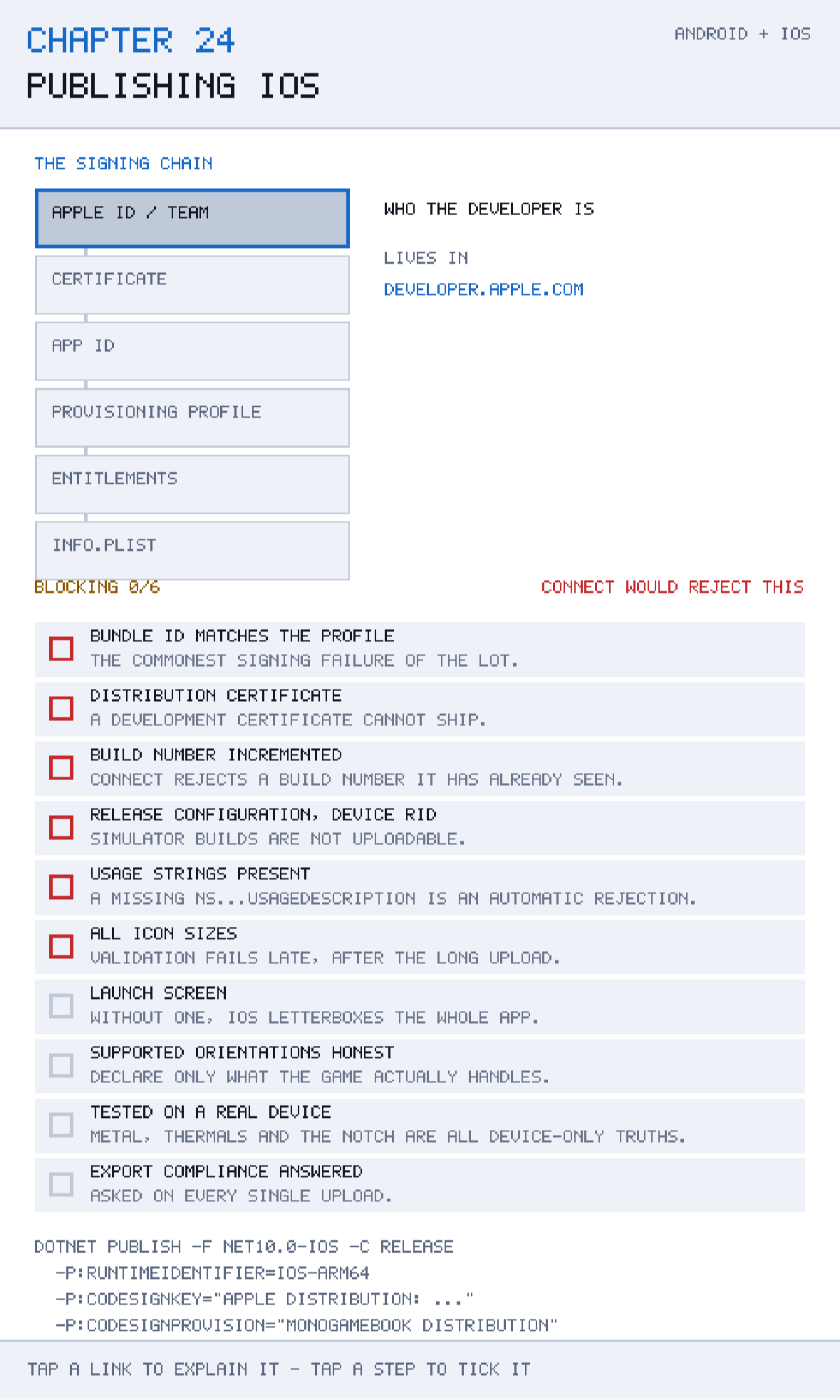
The chain
public sealed record SigningLink(string Name, string Purpose, string WhereItLives);

public static IReadOnlyList<SigningLink> Chain { get; } =
[
    new SigningLink("APPLE ID / TEAM", "Who the developer is",
        "developer.apple.com"),
    new SigningLink("CERTIFICATE", "That the team signed this binary",
        "Login keychain"),
    new SigningLink("APP ID", "The bundle identifier, wildcard or exact",
        "Developer portal"),
    new SigningLink("PROVISIONING PROFILE", "Which devices and capabilities are allowed",
        "~/Library/MobileDevice"),
    new SigningLink("ENTITLEMENTS", "The capabilities the binary actually asks for",
        "Entitlements.plist"),
    new SigningLink("INFO.PLIST", "Bundle id, version, orientations, usage strings",
        "The iOS project"),
];
Read them in order; each depends on the ones above it.
Apple ID and team
The account, and the team identifier — a ten-character string like A1B2C3D4E5 — that every other link refers back to. An individual account has one team; an organisation may have several, and being enrolled in the wrong one is a surprisingly common source of confusion on a shared machine.
Certificate
A public/private key pair plus Apple's signature over it, asserting that the holder is that team. Two kinds matter and they are not interchangeable:
- Apple Development — signs builds that run on devices registered to the team.
- Apple Distribution — signs builds for TestFlight and the App Store.
The private key lives in your login keychain. Losing it is less catastrophic than losing an Android keystore — you revoke the certificate and issue another — but it does invalidate every provisioning profile built on it, so it is a bad afternoon rather than a good one.
App ID
The bundle identifier registered with Apple, plus the capabilities that identifier is allowed to use. It can be exact — com.monogamebook.chapter24 — or a wildcard such as com.monogamebook.*.
Wildcards are convenient and cannot carry most capabilities: push notifications, iCloud, Game Center and in-app purchase all need an explicit App ID. For a game with any of those, register the exact identifier from the start.
Provisioning profile
The link that ties the others together. A profile is a signed file saying: *this team, using this certificate, may install this App ID on these devices, with these capabilities.* It lives in ~/Library/MobileDevice/Provisioning Profiles/ and it is what the build embeds into the app bundle.
Because it references everything else, it is where mismatches surface — and why the error message so often names the profile when the fault is elsewhere.
Entitlements
Entitlements.plist lists the capabilities the binary actually asks for. The rule that catches people is one-directional: the entitlements you request must be a subset of what the provisioning profile allows. Ask for something the profile does not grant and signing fails; grant something you never ask for and nothing happens at all.
A game like the ones in this book needs no entitlements, which is the easiest case.
Info.plist
Bundle identifier, version strings, supported orientations, required device capabilities, and the usage strings. The bundle identifier here must match the App ID the profile was built for — exactly, or against the wildcard.
Diagnose along the chain, not at the error
When signing fails, check in this order: does Info.plist's bundle id match the App ID the profile names? Is the profile for distribution or development, and does that match the build? Is the certificate the profile names still in your keychain and not expired? Is the team id the same everywhere? Four questions, and one of them is almost always the answer.
The checklist
Bundle id matches the profile — blocking
The commonest signing failure of the lot.
It is worth internalising why this happens so often. The bundle identifier appears in the .csproj as ApplicationId, in Info.plist as CFBundleIdentifier, in the App ID on the portal, and by reference in the provisioning profile. Four places, and any one of them can be edited independently. Automate it if you can: set ApplicationId in the project and let the build write the plist.
Distribution certificate — blocking
A development certificate cannot ship.
A development-signed build installs on registered devices and is rejected by App Store Connect. This is the second most common failure, and it is usually caused by a machine that has both certificates and a build that picked the wrong one. Name the certificate explicitly in the publish command rather than letting the tooling choose.
Build number incremented — blocking
Two version fields, exactly as on Android and just as easily confused:
CFBundleShortVersionString— the marketing version,1.0.1, shown to users. MSBuild property:ApplicationDisplayVersion.CFBundleVersion— the build number, which must be unique for each upload within a marketing version. MSBuild property:ApplicationVersion.
Connect rejects a build number it has already seen, including one you uploaded and then rejected yourself. Automate it from the CI build number.
Release configuration, device RID — blocking
Simulator builds are not uploadable.
Two settings, one item. The runtime identifier must be ios-arm64 — a build for iossimulator-arm64 contains x86-or-arm simulator code that Connect refuses — and the configuration must be Release, which is also where the ahead-of-time compilation happens.
This last point deserves emphasis: iOS does not permit JIT compilation, so a Release build is compiled ahead of time. That is a genuinely different code path from the Debug builds you have been running, and it is where reflection-dependent code fails. Chapter 21's test runner avoids reflection for exactly this reason.
Usage strings present — blocking
A missing NS...UsageDescription is an automatic rejection.
If your binary references an API that touches a protected resource — camera, microphone, photo library, tracking — Info.plist must contain a matching usage string explaining why, in plain language.
A game that does none of those needs none. The trap is that the requirement is triggered by the binary referencing the API, not by your code calling it: an SDK you link for something unrelated can pull in a framework and make the string mandatory. And "we need this for the app to work" is not an acceptable string — Apple rejects vague ones.
All icon sizes — blocking
Validation fails late, after the long upload.
Icons are validated server-side after the upload completes. A missing size means waiting several minutes for an upload to finish, then being told to start again.
The reliable way to avoid it is to let the tooling generate the set. A modern AppIcon.appiconset can hold a single 1024 × 1024 universal entry, and actool expands it into every size the platform wants at build time — the chapter demos in this book do exactly that, from one generated PNG:
{
  "images" : [
    {
      "filename" : "icon-1024.png",
      "idiom" : "universal",
      "platform" : "ios",
      "size" : "1024x1024"
    }
  ],
  "info" : { "author" : "xcode", "version" : 1 }
}
Point Info.plist at it with XSAppIconAssets, and validate locally with altool --validate-app before the upload rather than after it.
The publish command
dotnet publish -f net10.0-ios -c Release
  -p:RuntimeIdentifier=ios-arm64
  -p:CodesignKey="Apple Distribution: ..."
  -p:CodesignProvision="MonoGameBook Distribution"
  -p:ApplicationVersion=2
In full, with the upload step:
dotnet publish iOS/Chapter.iOS.csproj \
  -f net10.0-ios -c Release \
  -p:RuntimeIdentifier=ios-arm64 \
  -p:CodesignKey="Apple Distribution: Your Name (A1B2C3D4E5)" \
  -p:CodesignProvision="MonoGameBook Distribution" \
  -p:ApplicationVersion=$BUILD_NUMBER \
  -p:ArchiveOnBuild=true

xcrun altool --upload-app -f path/to/Chapter24.ipa \
  -t ios --apiKey $KEY_ID --apiIssuer $ISSUER_ID
CodesignProvision takes the profile's name, not its filename or UUID. CodesignKey takes the certificate's common name as it appears in the keychain, including the team identifier in parentheses. Both are exact-match strings, and a trailing space in either produces an error that names neither.
For the upload, prefer an App Store Connect API key over an Apple ID and password. It is a .p8 file plus two identifiers, it does not need two-factor authentication, and it can be scoped and revoked — which makes it the only sensible option on CI.
Verifying before you upload
# What did the app actually get signed with?
codesign -dvvv --entitlements - path/to/Chapter24.app

# What does the embedded profile allow?
security cms -D -i path/to/Chapter24.app/embedded.mobileprovision
Both commands take seconds and both answer questions that are otherwise guesswork. The first tells you which certificate signed the binary and what entitlements it carries; the second prints the profile as readable XML, including the App ID, the team, the expiry date and the device list.
Run them the first time you set up signing, and every time it breaks.
Caveats
Everything expires
Certificates last a year. Provisioning profiles last a year, or less. Neither warns you, and the failure arrives as a build that worked yesterday and does not today — often on the morning of a release.
Put the expiry dates in a calendar. security cms -D -i above prints the profile's ExpirationDate; security find-identity -v -p codesigning lists your certificates.
CI needs a keychain
Signing on a build agent means importing the .p12 certificate and the profile into a keychain the build can read, and unlocking it. This is fiddly, it is where secrets are most likely to leak into logs, and it is worth using Apple's xcode-select-aware tooling or a dedicated action rather than writing the security commands yourself.
Never commit a .p12 or its password to the repository.
Automatic signing hides the chain
Xcode's automatic signing manages certificates and profiles for you, and it works well — right up until it does not, at which point you need the chain anyway. For CI, explicit manual signing is more reliable because it is reproducible. Learn the chain even if you use automatic signing day to day.
TestFlight is not the App Store
TestFlight distribution has a lighter review than a public release, so a build that passes TestFlight can still be rejected. Use TestFlight to validate that the pipeline works — signing, upload, install — and expect the review itself to be a separate hurdle.
Export compliance is asked every time
Every upload asks whether your app uses encryption. Most games can answer "no" or claim the exemption for standard HTTPS, and the answer can be pre-declared in Info.plist with ITSAppUsesNonExemptEncryption so nobody has to click it again. It is a legal declaration; answer it accurately.
Only a device tells the truth
Metal, thermals and the notch are all device-only truths.
Chapter 2's list, one last time. The simulator does not run Metal the way a device does, does not throttle, and — although it draws a notch — is not a reliable guide to how your layout feels around it. Test the Release build on hardware before the upload, not after the rejection.
The errors, and what they actually mean
Signing failures are famous for messages that name the wrong link. These are the ones you will meet, with the fault that usually causes them:
| Message | Usually means |
|---|---|
| No profile matching '...' found | The profile name string does not match, or the profile is not installed on this machine |
| Provisioning profile doesn't include signing certificate | The profile was built for a different certificate - often development versus distribution |
| Bundle identifier does not match | Info.plist and the App ID disagree, or the wildcard does not cover it |
| Code signing entitlements not supported | The entitlements ask for a capability the App ID was not granted |
| A valid provisioning profile for this executable was not found | The device is not in the profile's device list |
| Invalid Bundle. The bundle contains disallowed file | A simulator build, or a stray .dSYM inside the app |
| The provided entity includes an attribute with an invalid value | Almost always a duplicate CFBundleVersion |
The pattern is worth noticing: five of the seven name the profile or the entitlements, and in four of those cases the real fault is the bundle identifier or the certificate. That is why the chain is worth learning as a chain.
TestFlight, and the loop it gives you
TestFlight is the fastest honest feedback available on iOS, and it is worth building into your process rather than treating as a pre-launch step.
- Publish a Release build for
ios-arm64and upload it withaltoolor an API key. - Wait for processing - typically five to twenty minutes, and it is where icon and bundle validation actually happen.
- Distribute to internal testers immediately; up to a hundred people on your team, with no review at all.
- For external testers, a light review applies - usually a day, and only on the first build of a version.
Two things make this loop valuable beyond distribution. Processing runs the same validation the App Store does, so a build that reaches TestFlight has already passed the checks that would otherwise fail your release upload. And TestFlight builds carry crash reports back to Xcode Organizer, which is a far better signal than a tester describing what they saw.
The cost is the build number: every upload consumes one, including the ones you reject. This is another argument for deriving it from a CI run number rather than typing it.
A publish script
#!/usr/bin/env bash
# publish-ios.sh - one commit, one build number, one artefact.
set -euo pipefail

: "${BUILD_NUMBER:?set BUILD_NUMBER}"
: "${APPLE_KEY_ID:?set APPLE_KEY_ID}"
: "${APPLE_ISSUER_ID:?set APPLE_ISSUER_ID}"

dotnet test tests/Core.Tests.csproj -c Release

dotnet publish src/Chapter24/iOS/Chapter.iOS.csproj \
  -f net10.0-ios -c Release \
  -p:RuntimeIdentifier=ios-arm64 \
  -p:CodesignKey="$CODESIGN_KEY" \
  -p:CodesignProvision="$CODESIGN_PROFILE" \
  -p:ApplicationVersion="$BUILD_NUMBER" \
  -p:ArchiveOnBuild=true

ipa=$(find . -name '*.ipa' -newer publish-ios.sh | head -1)
[ -n "$ipa" ] || { echo "no ipa produced"; exit 1; }

xcrun altool --validate-app -f "$ipa" -t ios \
  --apiKey "$APPLE_KEY_ID" --apiIssuer "$APPLE_ISSUER_ID"

xcrun altool --upload-app -f "$ipa" -t ios \
  --apiKey "$APPLE_KEY_ID" --apiIssuer "$APPLE_ISSUER_ID"
The --validate-app step before the upload is the one to copy. It runs Apple's checks locally in seconds and catches the icon and bundle problems that would otherwise fail after a several-minute upload.
What review looks at in a game
Apple's review is performed by a person, and for a game the recurring rejection reasons are predictable:
- Crashes on launch. By far the most common. Usually an ahead-of-time or trimming failure that never appeared in Debug, which is why the checklist insists on running the Release build on hardware.
- Placeholder content. Lorem ipsum, an unfinished settings screen, a button that does nothing. Reviewers open everything.
- Broken links. Privacy policy and support URLs are checked, and a 404 is a rejection.
- Sign-in requirements. If your game requires an account, provide a demo account in the review notes or it will be rejected as untestable.
- Metadata that does not match. Screenshots showing features the build does not have.
None of these are subtle, and all of them are cheaper to fix before the queue than after it.
Building and running this chapter
The solution is src/Chapter24/Chapter24.sln in the book's repository at github.com/nodoid/MonoGameBook/src/Chapter24.
cd src/Chapter24
dotnet build Android/Chapter.Android.csproj
dotnet build iOS/Chapter.iOS.csproj
To deploy to a connected Android device or a running emulator:
dotnet build Android/Chapter.Android.csproj -t:RunTo run on the iOS Simulator:
dotnet build iOS/Chapter.iOS.csproj -p:RuntimeIdentifier=iossimulator-arm64
xcrun simctl install booted \
  iOS/bin/Debug/net10.0-ios/iossimulator-arm64/Chapter24.iOS.app
xcrun simctl launch booted com.monogamebook.chapter24
Note the irony worth pointing at: the command above builds for the simulator, which is exactly the runtime identifier the chapter's checklist says you cannot upload.
Try it yourself
- Run
security cms -D -ion any provisioning profile on your machine and read the App ID, team, expiry and device list. It is a plain property list. - Run
codesign -dvvv --entitlements -on any built.appand compare its entitlements with what the profile allows. - Change
ApplicationIdin the iOS csproj to something the profile does not cover and build. Read the error, then work along the chain until you find the real cause. - Publish for
ios-arm64in Release and inspect the.ipa. Compare its size with a simulator build's. - List your certificates with
security find-identity -v -p codesigningand put their expiry dates in a calendar.
Summary
iOS signing is a chain of six links: the team, a certificate proving the team signed the binary, an App ID naming the bundle identifier and its capabilities, a provisioning profile tying all of those to a set of devices, the entitlements the binary actually requests, and the Info.plist that has to agree with all of it. A build fails when any two disagree, and the error names one link while the fault is usually in another — so diagnose along the chain rather than at the message.
Six items block an upload. A bundle identifier that matches the profile, which is the commonest failure of all because the identifier lives in four places. A distribution certificate rather than a development one. A build number that has not been used before. Release configuration with the ios-arm64 runtime identifier, because simulator builds are not uploadable and because Release is where ahead-of-time compilation happens. Usage strings for any protected API your binary references — including ones an SDK dragged in. And a complete set of icons, because that check runs server-side after the upload.
Two commands make signing knowable: codesign -dvvv --entitlements - tells you what the binary was actually signed with, and security cms -D -i prints the profile as readable XML. Learn both.
And everything expires — certificates and profiles, silently, usually on a release morning. Put the dates in a calendar.
Chapter 25 finishes the book by putting Android and iOS behind one gate, because two separate checklists is how a team ships an Android build containing a fix that never made it into the iOS one.