Chapter 14: Mobile Polish
Particles, shake and easing, on a budget
Two games can have identical rules and feel completely different. In one, an alien vanishes when you shoot it. In the other, it bursts into forty fragments that arc away under gravity and fade out, the screen jolts a couple of pixels, and the score counter springs up to its new value with a slight overshoot. The second one feels expensive. It is not — all three effects together are perhaps two hundred lines — but it reads as care, and care is what players are actually paying for.
The catch is that these are precisely the effects that will destroy your frame rate if you let them. A particle system with no upper bound is a system that works beautifully until the moment six things explode at once, which is also the moment the player most needs the frame rate. Screen shake with no cap stops reading as impact and starts reading as a fault. And every one of them allocates, unless you decide from the beginning that it will not.
So this chapter is about polish within a budget. The three effects are the excuse; the real subject is the pre-allocated, fixed-capacity, refuses-to-exceed-itself design that makes them safe to ship on a phone.
What you will learn in this chapter
- Why a fixed-capacity particle pool is the design, not an optimisation.
- How to write a particle system that allocates nothing after construction.
- Why
Particleis a mutablestructand howreflocals make that work. - Why screen shake needs both a decay and a cap, and what each is worth.
- The four easing curves worth knowing, what each communicates, and where to use them.
- What "dropped particles" tells you, and why it is better than a frame-rate drop.
- The caveats: draw-call cost, gravity in design units, and effects that outlive their owners.
The code for this chapter
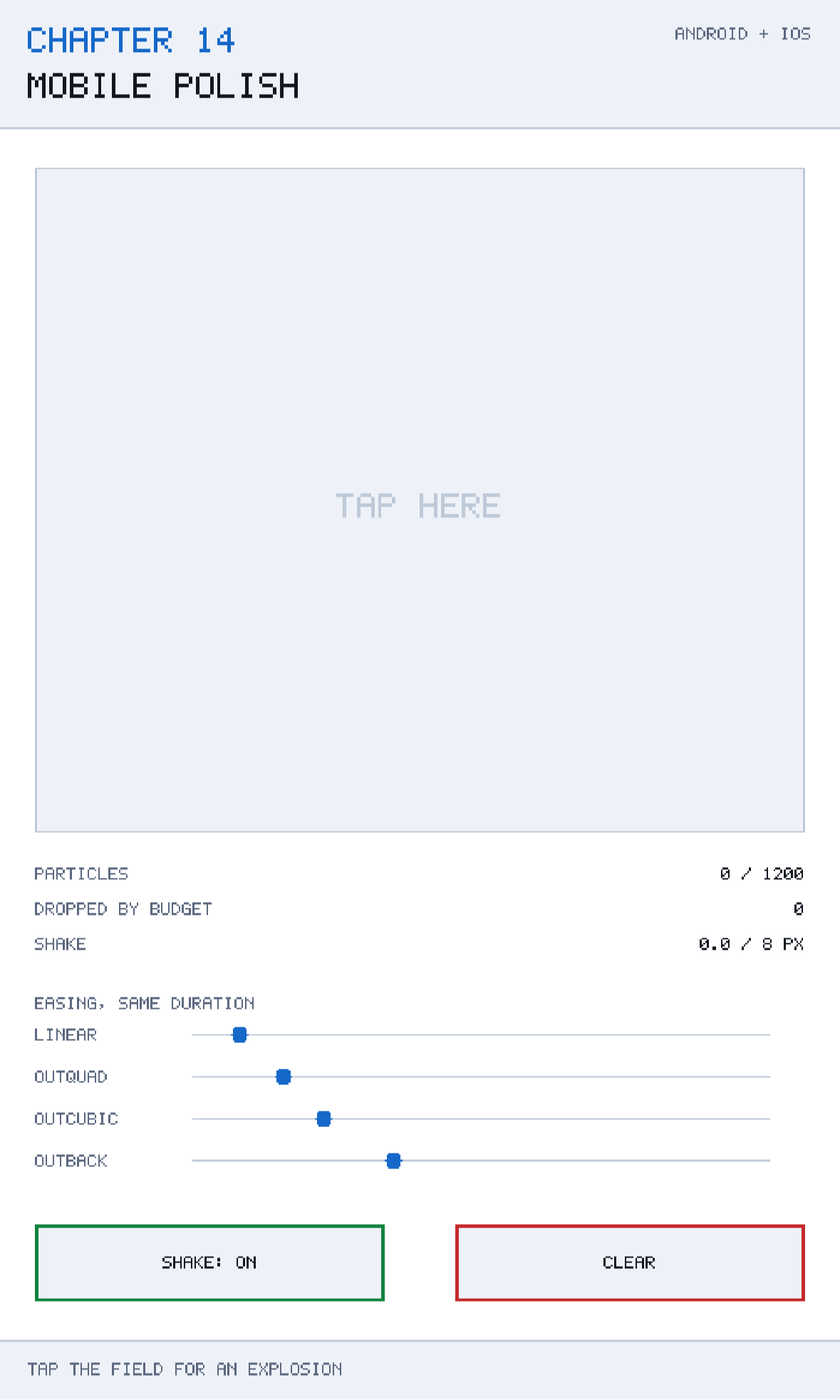
The demonstration is at github.com/nodoid/MonoGameBook/src/Chapter14. Tap anywhere for a particle burst and a screen kick; four easing curves run side by side underneath so you can compare them directly.
The pool is the design
Read the class comment first, because it states the position the whole chapter takes:
The capacity is the design: a phone will draw a few thousand of these happily and then fall off a cliff, so the system refuses to exceed its budget rather than letting a spectacular explosion drop the frame rate. Nothing is allocated after construction, which also keeps the garbage collector out of the frame.
There are two claims in there and both are worth arguing.
A budget you enforce is better than a budget you hope for. Mobile GPUs have a fill-rate and a draw-call ceiling, and the transition is not gradual — a game that is comfortably at 60 fps with 2,000 particles can be at 25 with 4,000. If your particle count is unbounded, then the worst frame in your game happens at the most dramatic moment, which is exactly backwards. Capping the count means the dramatic moment costs the same as any other, and the failure mode is "the explosion had fewer sparks than it might have", which no player will ever notice.
Not allocating is easier than collecting. Chapter 4 explained what a garbage collection does to a frame. A particle system is the single most likely source of one, because it creates and destroys thousands of short-lived objects. A pre-allocated array of structs creates none.
public sealed class ParticleSystem
{
    private readonly Particle[] particles;
    private readonly Random random = new(12);

    public ParticleSystem(int capacity)
    {
        particles = new Particle[capacity];
        Capacity = capacity;
    }

    public int Capacity { get; }
    public int LiveCount { get; private set; }

    /// <summary>Particles that could not be spawned because the budget was full.</summary>
    public int Dropped { get; private set; }
}
One array, allocated once. Dropped is the honest record of what the budget refused, and it belongs on your debug HUD next to Chapter 4's DroppedSteps and Chapter 12's Starved. All three are the same idea: when a system refuses work to protect the frame, say so out loud rather than pretending it did the work.
Particle: a mutable struct
Particle breaks two rules that are good rules elsewhere:
/// <summary>One particle. A struct, in a pre-allocated array, on purpose.</summary>
public struct Particle
{
    public Vec2 Position;
    public Vec2 Velocity;
    public float Life;
    public float MaxLife;
    public float Size;
    public byte Tint;

    public readonly bool IsAlive => Life > 0f;
    public readonly float Fade => MathF.Max(0f, Life / MaxLife);
}
It is a struct and it is mutable, with public fields rather than properties. Chapter 7 argued for readonly record struct for Vec2 and for a class for Entity; this is a third case, and the reasoning is different again.
It is a struct because ten thousand particles as objects means ten thousand allocations, ten thousand object headers, and a GC that has to trace all of them. As a struct in an array, the whole system is one contiguous block that the CPU can walk efficiently and the collector never looks inside.
It is mutable because it is stored in an array and updated in place. And that only works because of ref:
for (int index = 0; index < particles.Length; index++)
{
    ref Particle particle = ref particles[index];
    if (!particle.IsAlive)
        continue;

    particle.Life -= seconds;
    particle.Velocity = particle.Velocity with
        { Y = particle.Velocity.Y + gravity * seconds };
    particle.Position += particle.Velocity * seconds;

    if (particle.IsAlive)
        live++;
}
ref Particle particle = ref particles[index] is an alias for the array slot, not a copy of it. Writing particle.Life -= seconds writes into the array. Without the ref — with a plain Particle particle = particles[index] — you would update a copy and throw it away, and the particles would never move. It is worth typing that wrong version once and watching nothing happen, because it is a bug that produces no error at all.
Note that IsAlive and Fade are marked readonly. On a mutable struct that is not decoration: without it, the compiler makes a defensive copy every time you call the member through a ref, which silently undoes the optimisation you wrote the struct for.
The ref loop is the whole trick
for plus ref locals plus a struct array is the standard shape for any large collection of small, uniform, frequently-updated things in a game — particles, bullets, tiles, grass. It is the one place in this book where the more awkward code is genuinely the right code.
Life as the liveness flag
There is no bool Alive field. IsAlive => Life > 0f derives it, which means killing a particle is arithmetic that was going to happen anyway, and there is no possibility of the flag and the timer disagreeing. Fade => Life / MaxLife gives the renderer a 1-to-0 ramp for free.
Finding a slot is a linear scan for a dead one:
private int FindFreeSlot()
{
    for (int index = 0; index < particles.Length; index++)
        if (!particles[index].IsAlive)
            return index;

    return -1;
}
This is O(n) per particle spawned, which for a 2,000-slot pool bursting 40 particles is 80,000 comparisons in the worst case — measurable, if you burst every frame. The standard improvement is a free-list: keep an index of the last free slot and search forward from there, wrapping. Do it when a profiler says so; the simple version is obviously correct and that has value while you are learning the shape.
Refusing gracefully
public void Burst(Vec2 origin, int count, float speed)
{
    for (int spawned = 0; spawned < count; spawned++)
    {
        int slot = FindFreeSlot();
        if (slot < 0)
        {
            Dropped += count - spawned;
            return;
        }
        ...
    }
}
When the pool is full, the burst stops and records how many it gave up on. It does not grow the array, it does not evict a living particle, and it does not throw. Partial bursts look fine — a slightly thinner explosion — and the alternative behaviours all look worse.
Randomising what matters
float angle     = (float)random.NextDouble() * MathF.Tau;
float magnitude = speed * (0.35f + (float)random.NextDouble() * 0.65f);
float life      = 0.4f + (float)random.NextDouble() * 0.7f;

particles[slot] = new Particle
{
    Position = origin,
    Velocity = new Vec2(MathF.Cos(angle) * magnitude,
                        MathF.Sin(angle) * magnitude),
    Life = life,
    MaxLife = life,
    Size = 2f + (float)random.NextDouble() * 4f,
    Tint = (byte)random.Next(140, 256),
};
Four independent random values: direction, speed, lifetime and size. That is the minimum for a burst that does not look mechanical. Randomising the direction alone gives you a perfect expanding ring, which reads as a bug; varying the speed turns the ring into a cloud, and varying the lifetime means the cloud dissolves rather than vanishing all at once.
speed * (0.35f + rand * 0.65f) is a useful idiom: a multiplier that is never below 35% of nominal. Purely proportional randomness produces occasional near-zero values, which look like particles that failed to launch.
And as in Chapter 7, the generator is seeded — new Random(12) — so the effect is reproducible and testable.
Screen shake
Twelve lines, and every one of them is load-bearing:
public sealed class ScreenShake
{
    public const float MaxAmplitude = 8f;

    private readonly Random random = new(3);
    private float amplitude;

    public Vec2 Offset { get; private set; }

    public void Kick(float strength) =>
        amplitude = MathF.Min(MaxAmplitude, amplitude + strength);

    public void Update(float seconds)
    {
        amplitude = MathF.Max(0f,
            amplitude - amplitude * MathF.Min(1f, 6f * seconds) - 0.05f * seconds);

        Offset = amplitude <= 0.01f
            ? Vec2.Zero
            : new Vec2(
                ((float)random.NextDouble() * 2f - 1f) * amplitude,
                ((float)random.NextDouble() * 2f - 1f) * amplitude);
    }
}
The cap
The class comment is blunt about the number:
Amplitude is capped: past about eight pixels it stops feeling like impact and starts feeling like a fault.
Eight design units — about 20 device pixels on a modern phone. Beyond that the eye stops interpreting the movement as a reaction to something and starts interpreting it as the display being broken. Capping in Kick rather than in Update also means several impacts in one frame cannot stack into a catastrophe; the second explosion adds nothing if the first already reached the ceiling.
The decay, and the constant term
The decay has two parts and the second is the interesting one. amplitude - amplitude * 6f * seconds is exponential decay: fast at first, slower as it approaches zero — but it never actually reaches zero, so the screen would keep trembling by a hundredth of a pixel for ever. The - 0.05f * seconds is a small linear term that guarantees the shake terminates.
The MathF.Max(0f, ...) then stops it going negative, and the <= 0.01f check snaps the offset to exactly zero rather than leaving a sub-pixel jitter that will occasionally round to one pixel and produce a single-frame flicker at rest.
The class comment gives the reason for having a decay at all: *shake that stops abruptly reads as a glitch*. A game that cuts the offset to zero on a timer produces a visible jump on the last frame, which is the exact artefact the effect was meant to convey — and now it is happening at the wrong moment.
Applying it
The offset is added to the view transform, not to individual objects. With Chapter 5's renderer that is a single line at Begin, and it means the HUD, the playfield and the background all shake together — which is what makes it read as the camera moving rather than the world.
One judgement call: consider not shaking the HUD. Shaking text makes it briefly unreadable, and if the thing that caused the shake also changed the score, the player cannot read the number at the moment they most want to.
Easing
Four curves, all mapping a 0-to-1 input to a 0-to-1 output:
public static float Linear(float t)   => t;
public static float OutQuad(float t)  => 1f - (1f - t) * (1f - t);
public static float OutCubic(float t) => 1f - MathF.Pow(1f - t, 3f);

/// <summary>Overshoots and settles. Use sparingly; it draws the eye hard.</summary>
public static float OutBack(float t)
{
    const float overshoot = 1.70158f;
    float p = t - 1f;
    return 1f + (overshoot + 1f) * p * p * p + overshoot * p * p;
}
Run the demonstration and watch all four move together. They start and finish at the same time; what differs is everything in between, and each one says something different.
Linear is constant speed. Correct for anything mechanical — a conveyor, a progress bar tied to real work, a marching invader formation. Applied to a UI element it looks robotic, because nothing in the physical world starts and stops instantaneously.
OutQuad decelerates into its destination. This is the default you should reach for. Panels sliding in, cards settling, a camera catching up: fast at first, easing to a stop, which is how a thrown object behaves.
OutCubic is the same shape more strongly. Snappier at the start, gentler at the end. Better for larger movements, where OutQuad can feel slightly slow.
OutBack overshoots past its target and settles back. It draws the eye hard, which is exactly why the comment says to use it sparingly: it is right for a score popping up or an achievement badge arriving, and wrong for anything that happens more than once every few seconds. The magic number 1.70158 is the standard overshoot constant from Robert Penner's original easing equations, chosen to overshoot by about 10%.
Note that all four are "out" curves — they ease at the end. That is not an accident. In a game, the player usually initiated the movement, so the start should be immediate and the finish should be graceful. "In" curves, which start slowly, feel unresponsive when they are a reaction to a tap.
Easing is a presentation concern, and these functions are pure arithmetic with no graphics device in them, which is why they sit in Core. That also means the curve a designer asks for by name — "make it ease out cubic" — is a function you can point at rather than a number somebody tuned by eye.
Caveats
Particles are draw calls
This chapter's renderer draws every particle as a rectangle from a single one-pixel texture, so all of them land in one SpriteBatch and one draw call. That is the important property. A particle system that switches texture or blend state per particle produces one draw call each, and a few hundred draw calls is a frame budget on a phone. Keep particles in one atlas and one batch.
Additive blending costs fill rate
Bright, glowing particles usually want BlendState.Additive, which looks excellent and is expensive: every overlapping particle is another pass over the same pixels. Mobile GPUs are fill-rate limited, so a hundred large additive particles stacked on top of each other can cost more than a thousand small ones spread out. If the frame graph in Chapter 22 spikes when explosions overlap, this is why.
Gravity is in design units
gravity = 320f means 320 units per second squared in the 480 × 800 space from Chapter 5 — roughly a third of the screen height per second per second. Copy the number into a different design space and the particles will fall at a completely different apparent rate. Copy the feel, then tune.
Effects that outlive their owner
A particle burst spawned at an alien's position keeps running after the alien is gone, which is correct and is only possible because particles copy the origin rather than holding a reference. Never let an effect hold a reference to the entity that spawned it: entities are removed, effects are not, and the result is either a null reference or an object kept alive by an explosion.
Do not shake on every event
Shake is a strong signal and it dilutes fast. Reserve it for the player being hit and for genuinely large events. A game that shakes when the player fires has spent its most emphatic effect on its most common action, and by the second minute the player has stopped seeing it.
Accessibility
Screen shake and rapid particle motion are, for some players, actively unpleasant — both platforms have a system-level "reduce motion" preference for exactly this reason. Expose a switch that sets MaxAmplitude to zero and reduces particle counts, and honour the system setting where you can read it.
Building and running this chapter
The solution is src/Chapter14/Chapter14.sln in the book's repository at github.com/nodoid/MonoGameBook/src/Chapter14.
cd src/Chapter14
dotnet build Android/Chapter.Android.csproj
dotnet build iOS/Chapter.iOS.csproj
To deploy to a connected Android device or a running emulator:
dotnet build Android/Chapter.Android.csproj -t:RunTo run on the iOS Simulator:
dotnet build iOS/Chapter.iOS.csproj -p:RuntimeIdentifier=iossimulator-arm64
xcrun simctl install booted \
  iOS/bin/Debug/net10.0-ios/iossimulator-arm64/Chapter14.iOS.app
xcrun simctl launch booted com.monogamebook.chapter14
Tap rapidly to fill the pool and watch the dropped counter start climbing. That is the budget working.
Try it yourself
- Tap as fast as you can until
Droppedstarts increasing. Note that the frame rate does not change — that is the whole point of the cap. - Remove the
reffrom the update loop's local. The particles stop moving, and nothing warns you. - Remove the
- 0.05f * secondsterm from the shake decay and watch the amplitude approach zero without ever arriving. - Raise
MaxAmplitudeto40fand take a hit. It no longer reads as impact. - Randomise only the angle in
Burst, keeping speed and lifetime constant. The explosion becomes a perfect ring, which is why all four values vary.
Summary
Polish is what makes identical rules feel like a different game, and the three effects that give the best return are particles, screen shake and easing. All three are small; what makes them shippable on a phone is the budget around them.
The particle system is a fixed-capacity, pre-allocated array of mutable structs, updated through ref locals so the array is written in place. It allocates nothing after construction, so it cannot cause a collection mid-frame, and when it is full it drops particles and says how many rather than growing or stalling. Liveness is derived from the lifetime rather than stored, and four independent random values — direction, speed, lifetime, size — are the minimum for a burst that does not look mechanical.
Screen shake needs three things: a cap, because past about eight design units it reads as a fault rather than as impact; an exponential decay, because shake that stops abruptly is itself a glitch; and a small linear term plus a snap-to-zero, because pure exponential decay never terminates.
Easing is four functions and one principle. Ease out, because the player initiated the movement and the start should be immediate. OutQuad is the everyday choice, OutCubic for larger moves, Linear only for genuinely mechanical motion, and OutBack sparingly, for the one thing on screen you want the eye to go to.
Chapter 15 begins the book's second game. Everything from here to Chapter 19 builds a Sudoku — a very different shape of problem, starting with the least glamorous and most important part of it: eighty-one cells, and the arithmetic that turns them into a grid.