Chapter 6: Touch Input
Taps, drags and swipes from raw touch points
A phone does not tell you that the player tapped a button. It tells you that a contact appeared at (612, 1408), then that a contact was still present at (614, 1411), then at (613, 1409), and then that it was gone. Everything a player would call a gesture — a tap, a hold, a drag, a flick — is something you infer from that stream, and the quality of the inference is a large part of what people mean when they say a game "feels good" or "feels cheap".
The inference is not difficult. It is four numbers and about eighty lines. What is difficult is choosing the four numbers, because they encode facts about human fingers rather than facts about software: a finger is nine millimetres wide, it never lands exactly where the player intended, it always moves a little between touching down and lifting, and a "quick flick" and a "slow drag" differ by about a quarter of a second.
This chapter builds a gesture recogniser that classifies one finger's journey, explains where each threshold comes from, and then puts the recogniser's internal state on screen so you can watch your own thumb cross the boundaries.
What you will learn in this chapter
- What MonoGame's
TouchPanelactually gives you, and how aTouchLocationdiffers from an event. - How to reduce a raw touch collection into the three facts a scene needs: pressed, held, released.
- Why a tap is not "a touch that was released", and what tap slop is.
- The four thresholds that define tap, long press, drag and swipe — and where their values come from.
- How to write a recogniser as a small state machine with
Begin,ContinueandEnd. - Why the swipe test has to consider both distance and time, and what happens if you drop either.
- How MonoGame's built-in
TouchPanel.ReadGesturecompares, and when to use it instead. - The caveats: multi-touch, palm rejection, touch ids that change, and the platform differences that will catch you.
The code for this chapter
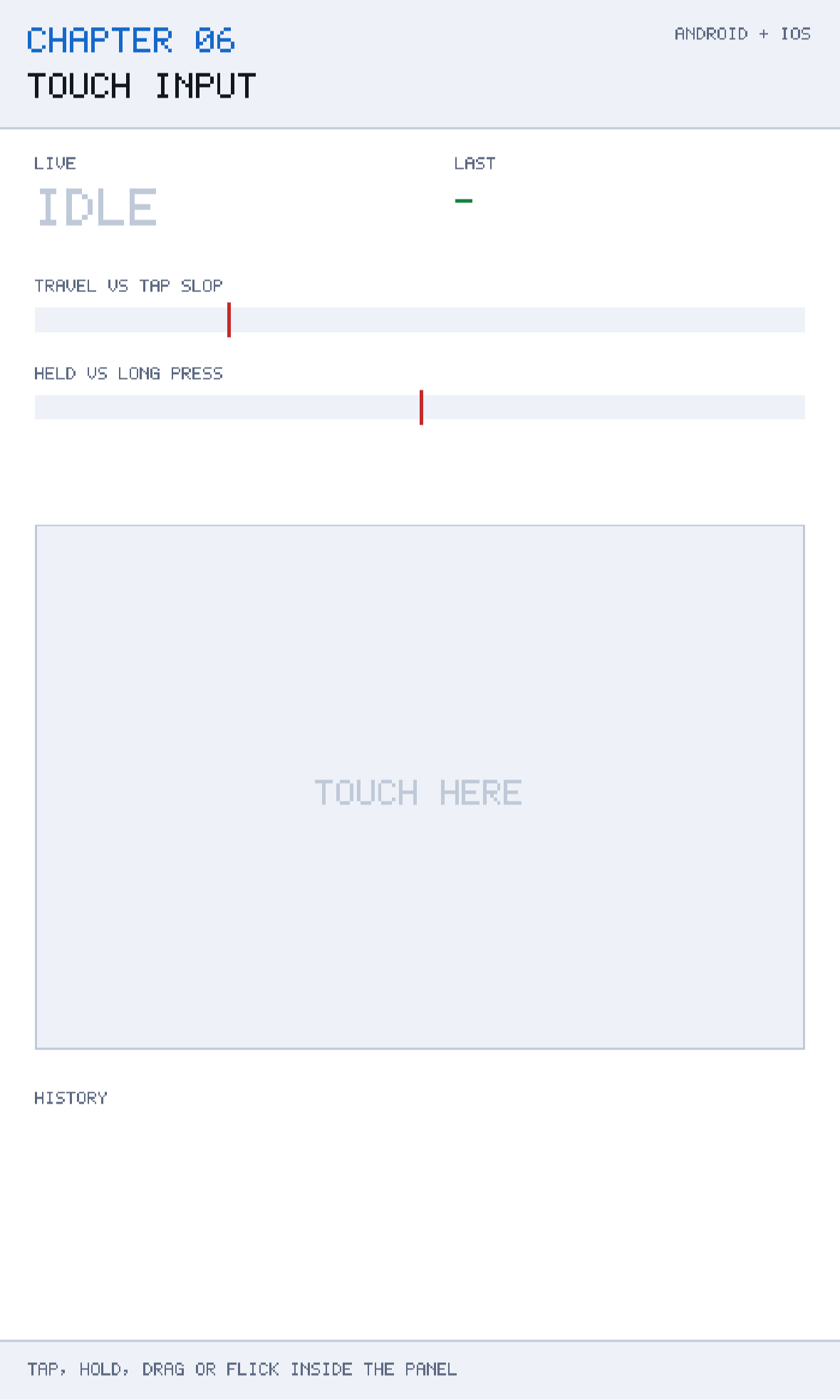
The demonstration is at github.com/nodoid/MonoGameBook/src/Chapter06. It draws two meters — travelled distance against the tap slop, and held time against the long-press threshold — a trail of where your finger has been, and a log of how each journey was finally classified.
What the touch panel gives you
MonoGame exposes touch through a static class:
TouchCollection touches = TouchPanel.GetState();This is a poll, not an event stream. Each call returns the set of contacts currently known to the system, and each contact is a TouchLocation with four useful members:
Id— a stable integer identifying this finger for as long as it stays down.Position— where it is, in device pixels (which Chapter 5 converts to design space).State— one ofPressed,Moved,ReleasedorInvalid.TryGetPreviousLocation(out TouchLocation)— where the same finger was on the previous frame.
State is the one that surprises people. Pressed appears on exactly one frame, when the finger arrives. Released appears on exactly one frame, when it leaves. Every frame in between is Moved, whether or not the finger actually moved. So the collection is stateful across frames even though the API looks stateless, and if you drop a frame — which you will, during a stall — you can miss the Pressed for a contact you later see as Moved.
Reducing the collection
Most scenes do not want a collection. They want to know three things: did a finger just arrive, is one down now, and where is it. This book reduces the collection once, in the host, into a TouchState:
public readonly record struct Finger(
    int Id, Vector2 Position, Vector2 Delta, bool Pressed, bool Released);

public sealed class TouchState
{
    public IReadOnlyList<Finger> Fingers => fingers;

    /// <summary>True on the frame a finger went down.</summary>
    public bool Tapped { get; private set; }

    /// <summary>True on the frame a finger lifted.</summary>
    public bool Lifted { get; private set; }

    /// <summary>True while at least one finger is on the glass.</summary>
    public bool IsDown { get; private set; }

    /// <summary>Position of the primary finger, or its last position when lifted.</summary>
    public Vector2 Position { get; private set; }

    /// <summary>Movement of the primary finger since the previous frame.</summary>
    public Vector2 Delta { get; private set; }
}
Note that Position deliberately keeps its value after the finger lifts. A scene that reacts on release — most buttons do — needs to know where the release happened, and reading a zeroed position on the release frame is a classic source of "the button at the top-left keeps firing".
The one convenience method carries its own trap-avoidance:
/// <summary>True when a tap started inside <paramref name="bounds"/> this frame.</summary>
public bool TappedIn(Rectangle bounds) =>
    fingers.Any(finger => finger.Pressed && bounds.Contains(finger.Position));
It tests Pressed, not "is inside", so dragging a finger across the screen does not fire every button it passes over. That single word is the difference between a UI that feels deliberate and one that feels haunted.
A tap is not a release
Here is the naive button:
if (touch.Lifted && bounds.Contains(touch.Position))
    Activate();
It is wrong in two directions at once. It fires when the player drags into the button from somewhere else and lifts, which they did not intend. And it fires when the player presses the button, changes their mind, drags away, and drags back — which is exactly the escape hatch every platform's UI gives users.
The real definition of a tap involves both position and time:
A tap is a contact that was released quickly, and close to where it started.
"Close to where it started" is necessary because a finger always moves. Press a phone screen with your thumb and hold as still as you can; the reported position will wander by five to fifteen pixels as the contact patch changes shape. That wander is called tap slop, and every touch platform has a constant for it. Android's ViewConfiguration.getScaledTouchSlop() is typically 8 dp; Apple's equivalent is around 10 points.
The four thresholds
The recogniser in Core is built entirely around four constants, and every one of them is a claim about human hands rather than about code:
/// <summary>Movement below this is finger jitter, not a drag.</summary>
public const float TapSlopPixels = 18f;

/// <summary>A press held longer than this without moving is a long press.</summary>
public const float LongPressSeconds = 0.45f;

/// <summary>A release faster than this, having travelled far enough, is a swipe.</summary>
public const float SwipeSeconds = 0.35f;

/// <summary>Distance a swipe has to cover to count.</summary>
public const float SwipeDistancePixels = 60f;
Because everything in this book is in the 480 × 800 design space from Chapter 5, these are design units, not device pixels — so they mean the same physical distance on every phone. 18 design units on a 6-inch phone is roughly 2.5 mm.
Tap slop: 18 units
Large enough to absorb finger wander and the small movement of a deliberate tap. Small enough that an intentional drag is recognised almost immediately. If you set it much below 10 you will get drags when the player meant taps; much above 30 and dragging feels like it has a dead zone.
Long press: 0.45 seconds
Android's system long-press timeout is 500 ms; iOS's default UILongPressGestureRecognizer minimum is 500 ms. Games generally want a touch faster than the OS, because in a game a long press is a deliberate mechanic rather than a hidden menu. 450 ms is fast enough to feel responsive and slow enough that nobody triggers it by accident.
Swipe time: 0.35 seconds
This is what separates a flick from a slow drag that happens to end far away. If you drop the time test entirely, then dragging a piece slowly across the board and releasing registers as a swipe — which, in a puzzle game, means the board suddenly scrolls when the player was placing a tile.
Swipe distance: 60 units
An eighth of the screen width. Below about 40 units a flick is indistinguishable from a sloppy tap; above about 100 the gesture starts to require a deliberate arm movement.
Tune on hardware, with your non-dominant hand
Every one of these numbers feels right on a mouse and wrong on a thumb. Put the chapter app on a phone, hold it one-handed in the hand you do not write with, and try each gesture twenty times. That is the condition most of your players are in.
The recogniser
The recogniser is a three-method state machine over one finger's journey. It begins when the finger lands:
public void Begin(float x, float y)
{
    startX = x;
    startY = y;
    TravelledX = 0f;
    TravelledY = 0f;
    elapsed = 0f;
    tracking = true;
}
Every frame the finger is down, it updates and reports what the gesture looks like so far:
public Gesture Continue(float x, float y, float elapsedSeconds)
{
    if (!tracking)
        return Gesture.None;

    elapsed += elapsedSeconds;
    TravelledX = x - startX;
    TravelledY = y - startY;

    if (Travelled > TapSlopPixels)
        return Gesture.Drag;

    return elapsed >= LongPressSeconds ? Gesture.LongPress : Gesture.None;
}
Two design decisions are embedded here and both matter.
Travel is measured from the start, not accumulated along the path. TravelledX = x - startX is displacement, not distance walked. A finger that wanders out and comes back has travelled zero. That is what you want for deciding "was this a tap", and it is not what you want for a drawing app — so if you are building one, accumulate segment lengths instead.
Drag wins over long press. Once the finger has moved beyond the slop, the gesture is a drag and can never become a long press, regardless of how long it is held. Reversing this — letting a slow, long drag also fire a long press — produces gestures that do two things at once.
And when the finger lifts, the journey is classified:
public Gesture End()
{
    if (!tracking)
        return Gesture.None;

    tracking = false;

    if (Travelled <= TapSlopPixels)
        return elapsed >= LongPressSeconds ? Gesture.LongPress : Gesture.Tap;

    if (elapsed <= SwipeSeconds && Travelled >= SwipeDistancePixels)
    {
        bool horizontal = MathF.Abs(TravelledX) > MathF.Abs(TravelledY);
        if (horizontal)
            return TravelledX > 0 ? Gesture.SwipeRight : Gesture.SwipeLeft;

        return TravelledY > 0 ? Gesture.SwipeDown : Gesture.SwipeUp;
    }

    return Gesture.Drag;
}
Read the order of the tests, because the order is the priority. Barely moved? Then it is a tap or a long press, decided by time. Moved far, and quickly? A swipe, whose direction is decided by which axis dominates. Anything else is a drag — the default, which is right, because a drag is the gesture with the fewest constraints.
The direction test — MathF.Abs(TravelledX) > MathF.Abs(TravelledY) — resolves a diagonal flick to whichever axis it favours. That is usually correct for a game with four-way input. If you need to reject ambiguous diagonals, require the dominant axis to be, say, twice the other.
Note also that TravelledY > 0 is SwipeDown, not up. Screen Y increases downwards, and this is the single most common sign error in gesture code.
Driving it from the scene
The scene's Update is the other half, and it shows the three-phase shape clearly:
if (touch.Tapped && pad.Contains(touch.Position))
{
    recogniser.Begin(touch.Position.X, touch.Position.Y);
    trail.Clear();
    trail.Add(touch.Position);
    down = true;
    live = Gesture.None;
}
else if (down && touch.IsDown)
{
    live = recogniser.Continue(
        touch.Position.X, touch.Position.Y, elapsedSeconds);

    if (trail.Count == 0 ||
        Vector2.Distance(trail[^1], touch.Position) > 3f)
        trail.Add(touch.Position);

    if (trail.Count > 160)
        trail.RemoveAt(0);
}
else if (down && !touch.IsDown)
{
    last = recogniser.End();
    live = Gesture.None;
    down = false;
}
The scene owns the down flag rather than asking the recogniser, because the recogniser should not have to know whether the touch started inside the pad. Gestures that begin outside the region of interest are simply never begun.
The trail exists purely to make the chapter visible, but the 3-unit filter on it is a real technique: storing every reported position gives you a dense cloud of nearly identical points, and thinning by distance keeps the shape while bounding the memory.
MonoGame's built-in gestures
MonoGame has its own recogniser, and it is worth knowing why this book does not use it:
TouchPanel.EnabledGestures =
    GestureType.Tap | GestureType.Hold | GestureType.HorizontalDrag |
    GestureType.Flick;

while (TouchPanel.IsGestureAvailable)
{
    GestureSample gesture = TouchPanel.ReadGesture();
    switch (gesture.GestureType)
    {
        case GestureType.Tap:   HandleTap(gesture.Position);   break;
        case GestureType.Flick: HandleFlick(gesture.Delta);    break;
    }
}
This works, and for a game that needs exactly the built-in gesture set it is less code. Its drawbacks are real, though:
- The thresholds are not yours. You cannot tune tap slop or the hold duration; they are fixed inside the framework and differ subtly by platform.
- It is an event queue, not a state. You get told a tap happened, not that a finger is currently down and 22 units into a drag. Anything that needs live feedback — a dragged ship, a stretching slingshot — needs the raw path anyway.
- It is not testable.
TouchPanelis a static tied to a platform. The recogniser in this chapter'sCoretakes floats and returns an enum, so Chapter 21 can drive it through a synthetic journey and assert on the result.
Use the built-in gestures for simple menu interaction if you like them; write your own when the feel matters.
Caveats
Multi-touch and the primary finger
TouchState in this book exposes every finger in Fingers but treats fingers[0] as primary for Position and Delta. That is fine for a one-finger game and wrong for anything with two-finger zoom or twin-stick controls. If you need real multi-touch, key your recognisers by TouchLocation.Id in a dictionary, and remember to remove entries on Released or you will leak one per contact.
Ids are reused
Touch ids are unique among live contacts, not over time. Lift a finger and press again and you may get the same id. Never use a touch id as a key into anything that outlives the contact.
The finger you cannot see
On a real device the player's own hand covers roughly the bottom third of the screen while they are touching it. Anything that gives feedback directly under the finger is invisible. Draw confirmation above the touch point, not at it — this is why the chapter app puts its meters at the top and the pad at the bottom.
Palm and edge rejection
iOS and Android both suppress some contacts near screen edges to avoid accidental grip touches, and they do it differently. A control strip flush against the left edge will be less reliable on one platform than the other. Keep interactive elements at least 20 design units from the edges.
Frame-rate dependence
Continue accumulates elapsedSeconds, so the long-press timing is frame-rate independent — good. But the sampling of position is not: at 30 fps you get half as many trail points, and a fast flick may be reported as two positions rather than eight. If you need accurate flick velocity, use TryGetPreviousLocation and the time between frames rather than differencing positions across your own frames.
Touch during a stall
If a frame takes 250 ms — Chapter 4's scenario — you may see a Pressed and a Released for the same contact within a single polled state, or miss one entirely. Defensive code should treat "released without ever having begun" as a no-op, which is what the if (!tracking) return Gesture.None; guard at the top of End is for.
Building and running this chapter
The solution is src/Chapter06/Chapter06.sln in the book's repository at github.com/nodoid/MonoGameBook/src/Chapter06. It builds and runs entirely on its own; nothing in it depends on any other chapter having been read or built.
Build either head from the chapter folder:
cd src/Chapter06
dotnet build Android/Chapter.Android.csproj
dotnet build iOS/Chapter.iOS.csproj
To deploy to a connected Android device or a running emulator:
dotnet build Android/Chapter.Android.csproj -t:RunTo run on the iOS Simulator without opening an IDE, build for the simulator runtime and install the bundle by hand:
dotnet build iOS/Chapter.iOS.csproj -p:RuntimeIdentifier=iossimulator-arm64
xcrun simctl install booted \
  iOS/bin/Debug/net10.0-ios/iossimulator-arm64/Chapter06.iOS.app
xcrun simctl launch booted com.monogamebook.chapter06
Everything the chapter demonstrates is reachable by touch on the first screen; there are no menus to navigate and nothing to load.
Try it yourself
- Tap the pad twenty times as quickly as you can and watch the travelled distance in the log. That range is your personal tap slop; compare it with 18.
- Hold still and watch the long-press meter fill. Then try to hold still for a second while walking — the slop is doing more work than you think.
- Set
SwipeSecondsto5fand try a slow drag across the pad. Every drag now ends as a swipe. Set it back. - Add a
SwipeVelocityproperty computed asTravelled / elapsed, and use it to distinguish a lazy flick from a hard one. - Extend
TouchStateto track two fingers by id, and add a pinch gesture that reports the change in distance between them.
Summary
Touch arrives as a poll of contacts, each with a state that is Pressed on exactly one frame and Released on exactly one frame. Reducing that collection once — into "a finger arrived", "a finger is down", "where is it" — keeps every scene in the game free of touch bookkeeping, and gives you one place to add the desktop mouse fallback from Chapter 2.
A gesture is an inference over one finger's journey, and it is defined by four numbers: how far the finger may wander and still count as still (18 units), how long a still press becomes a long press (0.45 s), how quickly a moved finger must release to count as a flick (0.35 s), and how far it must have gone (60 units). Because those live in the 480 × 800 design space, they mean the same physical thing on every device.
The recogniser itself is Begin, Continue, End, with the classification order encoding the priority: barely moved is a tap or a hold; moved fast and far is a swipe; everything else is a drag. Displacement rather than path length, drag beating long press, and positive Y meaning down are the three details that are easy to get wrong.
MonoGame's built-in ReadGesture will do all this for you with thresholds you cannot change and no way to unit-test the result. That is a reasonable trade for menus and a poor one for the core interaction of your game.
Chapter 7 takes the input you now have and puts it to work on something that moves: many objects, sharing one update rule, in a world that has to stay fast when there are hundreds of them.